Abyssal Lapidary not starting: Fix Steam Error 0x11C7
Fix Abyssal Lapidary launch problems with safer Steam checks, an explanation of error 0x11C7, and cautions about Smart App Control.
Abyssal Lapidary Not Starting? Check the Error First
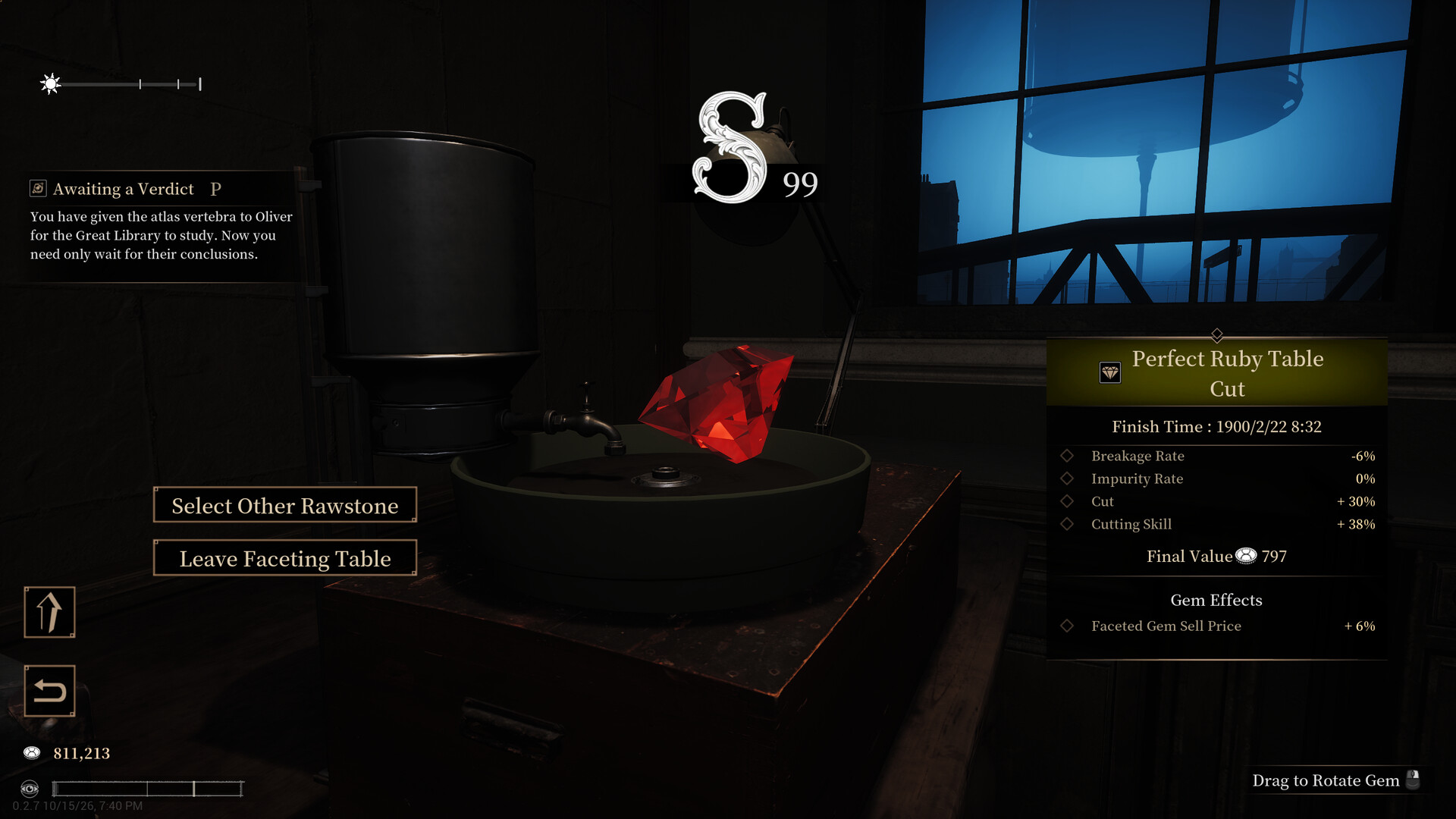
Official screenshot · Source: Steam store
Abyssal Lapidary not starting can leave you stuck at Steam’s Play button before you ever reach the main menu. The exact error matters because a Windows application-control block requires a different response than missing game files or a crash. If you’re searching for Abyssal Lapidary not starting, first check whether Steam displays 0x11C7 alongside a message saying an application-control policy blocked a file.
Community reports describe that specific launch failure on Windows 11. One player reported getting the game running after disabling Smart App Control, but that changes a Windows security protection and should not be your first troubleshooting step.
This guide separates the reported workaround from general troubleshooting so you can make an informed choice without unnecessarily weakening your PC’s security.
What the available reports establish
In the Steam Community discussion about Abyssal Lapidary’s 0x11C7 launch error, the original poster described an application-control block. Two other participants reported the same problem, and another shared a successful Smart App Control workaround.
That is useful player experience, not an official diagnosis for every startup failure. The supplied discussion does not establish a universal cause, an affected-hardware list, or a developer-confirmed permanent fix.
| What happens when you click Play | What it suggests | Best first response |
|---|---|---|
| Steam shows 0x11C7 and mentions application control | Windows policy is preventing execution | Investigate the security block |
| Steam returns to Play without an error | The launch attempt ends unexpectedly | Restart and verify installed files |
| A window opens, then closes | A startup crash rather than a confirmed policy block | Check updates and crash details |
| The game opens, but a delivery button is inaccessible | An in-game interface problem | Use UI-specific troubleshooting |
Take a screenshot of the complete message before changing anything. An error code is much more useful than “the game doesn’t work” when comparing reports or requesting help.
Start With Low-Risk Steam and Windows Checks
For Abyssal Lapidary not starting without a clear application-control message, begin with basic checks that do not change your security settings. These are general troubleshooting steps, not fixes confirmed by the supplied community reports.
Try one change at a time and launch the game after each step. Otherwise, you may fix the problem without knowing which change mattered.
Restart Steam and your computer
Exit Steam fully through Steam → Exit, then reopen it. If the problem continues, restart Windows and try launching the game from your Steam Library.
A restart can clear a stalled process or finish pending updates. It will not normally override an application-control policy, so repeated restarts are unlikely to help if the same policy error keeps appearing.
Install available updates
Check Steam’s Downloads page for a pending game update. Also check Settings → Windows Update for available Windows updates, then restart if requested.
Updates are a sensible preliminary check, but the supplied sources do not identify a particular game patch or Windows update that resolves 0x11C7.
Verify the installed game files
Use Steam’s built-in verification tool:
- Open your Library.
- Right-click Abyssal Lapidary and select Properties.
- Open Installed Files.
- Select Verify integrity of game files.
- Let the check finish, then try launching again.
Verification checks the installation and can reacquire missing or damaged files. It does not grant permission to run a file that Windows policy explicitly blocks.
| Preliminary check | What it can address | What it cannot establish |
|---|---|---|
| Restart Steam | A stuck client or launch session | Whether Windows trusts the executable |
| Restart Windows | Stalled processes and pending changes | That a policy block has been removed |
| Update the game | Problems addressed by a newer build | That a launch fix exists in that update |
| Verify game files | Missing or altered installation files | Permission to bypass application control |
Avoid downloading replacement executable files or DLLs from unofficial sites. A launch problem is not a reason to introduce files of uncertain origin into your installation.
Investigate Error 0x11C7 and Smart App Control
When Abyssal Lapidary not starting comes with error 0x11C7 and an application-control warning, focus on the block rather than immediately reinstalling the game.
The reported message indicates that Windows prevented a file from running under an application-control policy. The error alone does not prove that Smart App Control is responsible on every computer. Managed devices can have other application-control policies.
Check the current Smart App Control status
On a Windows 11 PC where the feature is available:
- Open Start and search for Windows Security.
- Select App & browser control.
- Open Smart App Control settings.
- Note whether the feature is on, in evaluation mode, or off.
Simply checking the status does not reduce protection. If Smart App Control is already off, the reported workaround does not explain your current block; investigate another policy or seek support instead.
Also look for a related Windows Security notification or entry in Protection history, if available. Record the blocked filename and path without assuming every security event belongs to the game.
Understand the reported workaround before using it
One player experience in the launch-error discussion says disabling Smart App Control, restarting Windows, and launching through Steam resolved the problem.
This is a security tradeoff, not a harmless game setting. Smart App Control helps prevent untrusted applications from running. Turning it off removes that protection beyond Abyssal Lapidary.
Re-enabling the feature can depend on your Windows version and configuration; on some installations, it may require resetting or reinstalling Windows. Do not assume you can switch it off briefly and immediately restore the previous state. Read the warning shown by Windows before confirming any change.
| Your situation | Recommended next step |
|---|---|
| Personal PC, Smart App Control on, matching policy error | Consider reporting the block and waiting for a trusted updated build |
| You are considering disabling Smart App Control | Review the security impact and re-enablement requirements first |
| Work or school computer | Ask the administrator to review the blocked application |
| Smart App Control already off | Investigate another application-control policy |
| No application-control message | Continue with general startup troubleshooting |
If you knowingly accept the tradeoff on your own PC, the community-reported sequence is to turn Smart App Control off in its settings, restart, and retry through Steam. Do not disable antivirus, firewall protections, or other security features alongside it. That would introduce additional risk without evidence that those changes are needed.
Running Steam as administrator is not a reliable substitute for resolving an application-control policy. Avoid treating elevated privileges as a universal launch fix.
Troubleshoot Other Launch Symptoms Separately
If Abyssal Lapidary not starting means a black screen, an immediate crash, or Steam returning to Play without an error, the Smart App Control report may not apply.
Use the symptom you actually observe to choose the next test. These checks are general PC-game troubleshooting, not game-specific solutions established by the available sources.
Remove unnecessary launch customizations
If you previously added launch options, copy them somewhere safe and temporarily clear them under Properties → General → Launch Options.
Likewise, remove compatibility settings you added yourself before testing again. Avoid experimenting with undocumented graphics flags: the reference material does not establish the game’s engine or supported launch arguments.
Test overlays and graphics drivers selectively
For a game window that appears before crashing, temporarily close optional overlays or monitoring tools. Change one item at a time, then restore anything that makes no difference.
If the symptoms suggest a graphics problem, check for an appropriate driver through your GPU manufacturer’s official website or application. A driver update is not an evidence-backed response to an explicit application-control block.
| Symptom | Reasonable next test | Important limitation |
|---|---|---|
| Play briefly changes to Stop, then returns | Verify files and remove custom launch options | Does not identify the underlying crash |
| Black screen after a window appears | Test optional overlays and check graphics drivers | Not a confirmed Abyssal Lapidary fix |
| Explicit application-control error | Review Windows security status and policy | Reinstalling may leave the policy unchanged |
| Repeated failure after basic checks | Collect diagnostics and report it | More random changes can obscure the cause |
Do not confuse the delivery-button bug with a launch failure
Separate community reports describe a delivery button extending off-screen when selling certain gems to the Satin White Lady. One player suggested temporarily switching the language to Japanese, completing the sale, and switching back.
That workaround concerns an in-game interface problem. It is not evidence that changing language fixes startup errors, and it cannot help if Windows prevents the game from opening.
What to Do If Abyssal Lapidary Still Will Not Launch
If Abyssal Lapidary not starting persists, a useful bug report is a better next step than repeatedly reinstalling or changing unrelated settings.
Check the game’s Steam announcements and discussion threads for newer information. The supplied reports establish a community workaround, but they do not establish an official resolution as of this article’s October 24, 2026 reference date.
Include these details in your report:
- Exact symptom: No window, black screen, immediate crash, or blocked-process message.
- Complete error text: Include 0x11C7 if displayed.
- Windows version and build: Run
winverfrom Start. - Security status: Note Smart App Control’s state without changing it just to complete the report.
- Device ownership: Mention whether the computer is managed by work or school.
- Troubleshooting results: State which checks you completed and what changed.
- Relevant diagnostics: Include an Event Viewer application error if one matches the failed launch time.
Crop screenshots to remove usernames, unrelated file paths, and other personal information.
Consider reinstalling only after less disruptive checks, and back up saves first. The reference material does not confirm the save location or Steam Cloud coverage, so do not assume uninstalling is risk-free for your progress. Reinstallation also should not be expected to remove a Windows policy block.
FAQ
Why is Abyssal Lapidary not starting with error 0x11C7?
Community reports describe Windows blocking the game under an application-control policy. One player linked their case to Smart App Control on Windows 11 and reported success after disabling it. That does not establish the cause on every PC, especially managed devices.
Should I turn off Smart App Control to launch the game?
Do not make it your first step. Check updates, verify files, and confirm the matching error first. Disabling Smart App Control reduces protection, and restoring it may require significant recovery steps on some Windows configurations. Waiting for an updated build or requesting support avoids that tradeoff.
Will verifying Steam files fix an application-control block?
Verification can repair missing or altered game files, so it is worth trying. However, it does not override Windows application-control rules. If the same policy message remains, focus on identifying the block rather than repeatedly verifying the installation.
Does switching to Japanese fix the startup problem?
The supplied community workaround applies to an off-screen delivery button during gameplay, not a launch failure. Keep that UI issue separate from error 0x11C7, startup crashes, and other problems that prevent the game from opening.
Related Guides
Abyssal Lapidary black screen: Fixes to Try
Troubleshoot an Abyssal Lapidary black screen with Steam file checks, graphics driver updates, display tests, and safe steps that protect your saves.
Abyssal Lapidary gem cutting: Beginner Guide
Explore Abyssal Lapidary gem cutting, from ore appraisal to jewelry crafting, with confirmed mechanics and practical tips for the demo.
Abyssal Lapidary activation anomaly: Demo Guide
Understand Abyssal Lapidary's anomaly warnings, unusual finds, and activation lore, with practical demo tips and clearly labeled player experience.
Abyssal Lapidary Steam Next Fest: Demo Release Guide
Explore the Abyssal Lapidary Steam Next Fest demo, including its 4+ hours of content, save transfers, new features, and PC requirements.
Abyssal Lapidary Steam Deck: Compatibility Guide
Check Abyssal Lapidary Steam Deck compatibility, demo availability, control considerations, and sensible settings to test before release.